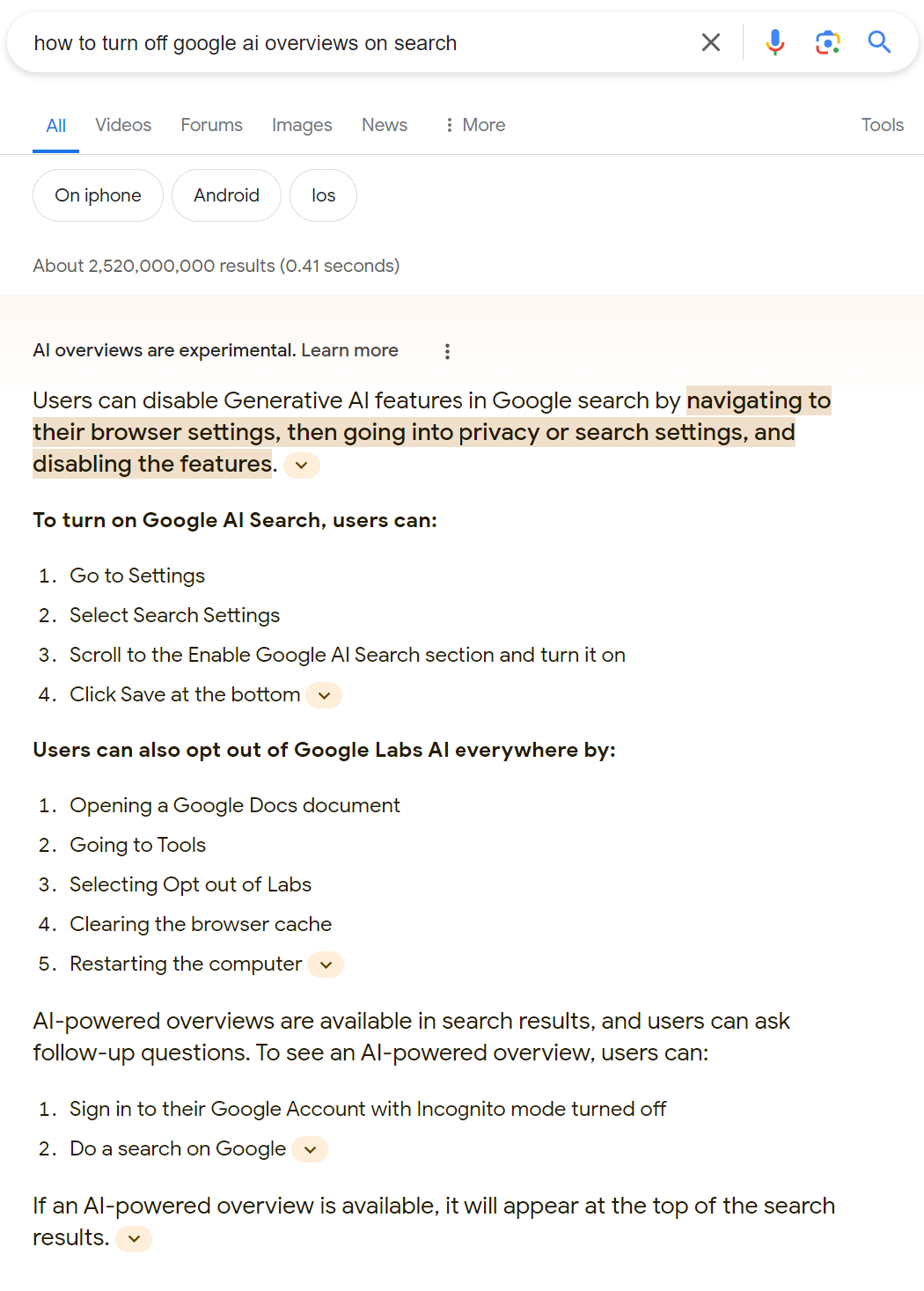
How to Turn Off AI in Google Docs
If Google Docs feels crowded with AI prompts, you are not imagining it. The push toward automated writing help has made the editor busier, and for many people that gets in the way of focused work. If you want to turn off AI in Google Docs, the goal is simple. You want a quieter document space, fewer suggestions, and more control over what appears on screen.
That matters now because Google keeps folding AI into everyday tools, and the settings are not always obvious. Some users want less distraction. Others work on sensitive drafts and do not want extra assistance turned on by default. Either way, you should know where the switches live and what they actually change. What good is a writing app if you have to fight it just to write?
What to know before you turn off AI in Google Docs
- Google Docs can show AI help in different places. Some features live inside Docs, while others come from Google Workspace settings.
- Turning one feature off may not remove everything. You may still see smart suggestions, writing tools, or other Gemini-related prompts.
- Your account type matters. Personal accounts and Workspace accounts do not always get the same controls.
- Admin rules can override your choice. If you use a work or school account, your organization may control the setting.
How to turn off AI in Google Docs on your account
The exact path can change as Google updates the interface, but the basic idea stays the same. Start inside Google Docs, then look for the tools, settings, or preferences area tied to smart features. If you see AI-assisted writing options, switch them off there first.
For Workspace users, the bigger controls may sit in the admin console rather than in the document itself. That means your IT team can set the rules for Gemini or other assistant features across the domain. If you do not see a personal toggle, that is usually why.
- Open Google Docs.
- Go to the settings or tools menu.
- Look for writing assistance, smart features, or AI-related options.
- Turn off the features you do not want.
- Reload the document and check whether the prompts are gone.
And if the setting seems to vanish after a page refresh, do not panic. Google often separates document-level controls from account-level controls, which can make the process feel like a maze (especially in Workspace). That is why checking both the app and your account settings is the safest move.
Google Docs AI settings and what they usually affect
Turning off AI in Google Docs usually changes how much assistance you see while typing. It may reduce inline rewrite prompts, smart compose-style help, or sidebar features tied to Google’s assistant tools. But it may not disable every predictive feature in the Google ecosystem.
Think of it like turning off a kitchen appliance’s display, not unplugging the whole house. The screen goes dark, but the wiring behind it can still be active elsewhere.
If you use Docs for drafting, editing, or collaboration, that distinction matters. You may want less auto-help in the editor without losing spell check or comment tools. Those are separate jobs, and Google does not always bundle them the same way.
Personal accounts vs Workspace accounts
Personal accounts usually give you fewer admin layers to fight through. Workspace accounts are different. Your organization may lock some settings, which means you need to ask an admin if the AI controls are missing or greyed out.
That split is not a small detail. It decides whether you can make the change yourself or have to route it through policy. For teams handling legal, financial, or client material, that policy layer is the whole story.
Why some people turn off AI in Google Docs
People do it for different reasons, and most are practical. Some dislike the interruption. Others do not want suggestion clutter while editing dense text. Some simply trust their own voice more than a machine’s guess.
There is also a data angle. If you work with confidential material, you may want tighter control over which features are enabled in your writing stack. That does not mean AI tools are unsafe by default. It means you should be deliberate, not passive.
Honestly, the best editing interface is the one that stays out of your way.
What to check after you turn off AI in Google Docs
- Open a fresh document and test whether AI prompts still appear.
- Check your Google Workspace settings if you use a managed account.
- Review related features in Gmail, Drive, and Chrome if you want a broader cleanup.
- Ask your admin whether policy settings are restoring the feature after you change it.
Also check the browser side. Sometimes extensions or account sync can make a setting look like it did not stick. It is a little like changing one rule in a playbook while the coach is still calling a different formation from the sideline.
Keep the editor under your control
The real win here is not just disabling one feature. It is making Google Docs work the way you do. If you want AI help later, you can turn it back on. If you want a clean drafting space now, cut the clutter and test the result in a new document.
Google will keep pushing smarter tools into Docs. The question is whether you want them on your desk, and how much of that automation you are willing to keep. That choice should sit with you, not with default settings.


