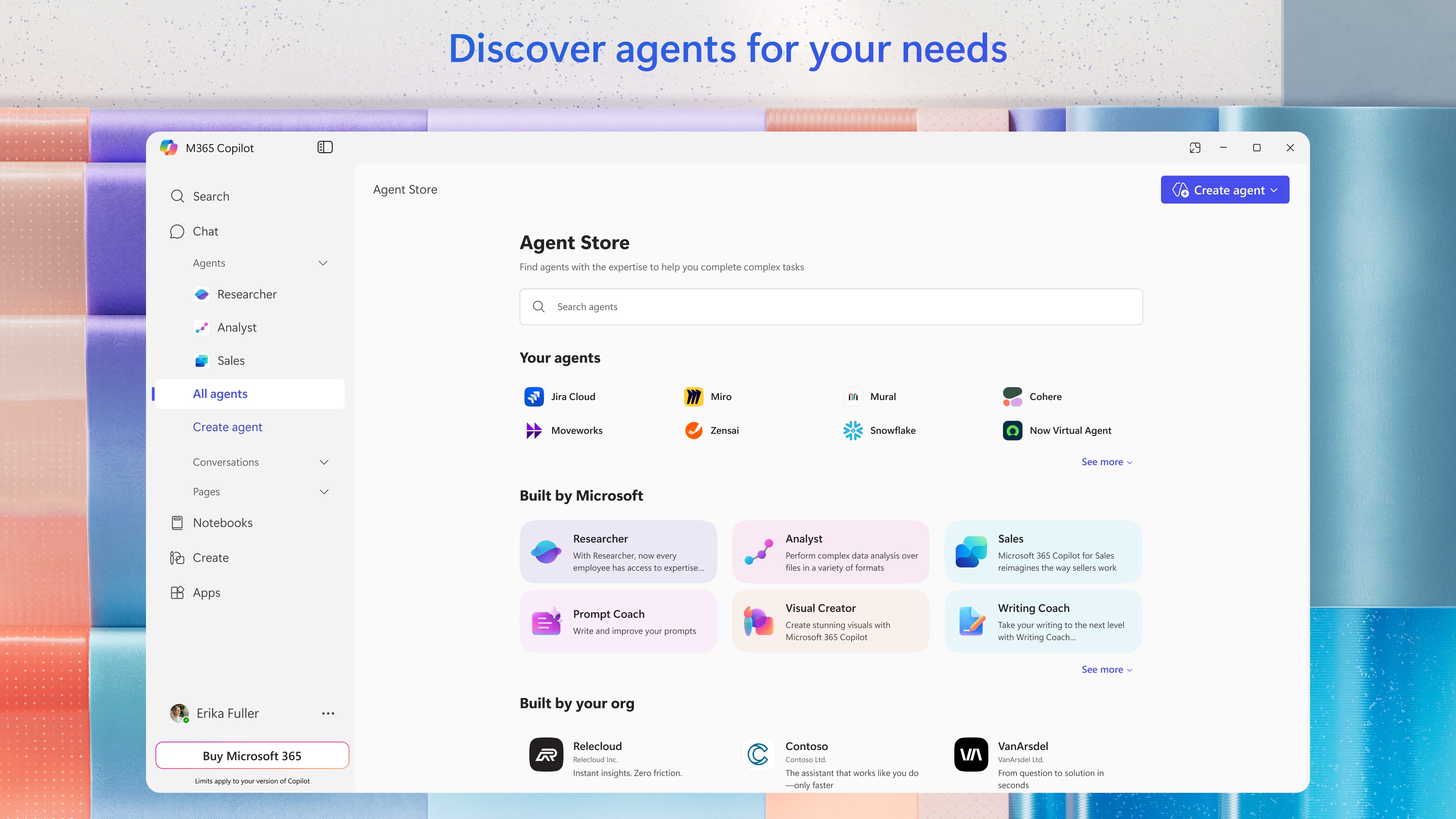
Microsoft Copilot 365 App: One Interface, Two Jobs
Microsoft keeps trying to make Copilot the front door to work, and the Microsoft Copilot 365 app is the clearest sign yet. If you use Microsoft 365, this matters because the company is no longer treating AI as a side panel. It wants Copilot to sit at the center of your documents, chats, meetings, and search. That sounds tidy on a slide deck. In practice, it raises a hard question. Do you want one app that promises to do everything, or do you want clear tools that stay out of your way?
The answer affects how you write, search, summarize, and share. It also affects what your team pays for, what IT has to manage, and how much control you keep over your own work. Microsoft is betting that users will trade a little simplicity for a lot of AI convenience. Maybe that works. Maybe it just creates one more layer of software to learn.
What stands out in Microsoft Copilot 365 app
- Copilot and Microsoft 365 are being pulled closer together. The app is no longer just a chatbot wrapper.
- The goal is fewer hops between chat, files, and meetings. That saves time if you live in Office all day.
- Search matters as much as generation. Finding the right file fast is half the battle.
- Admin and licensing questions are not going away. Unified surfaces often hide messy back-end rules.
Why Microsoft is collapsing the experience
Microsoft has spent years adding AI features across Word, Excel, Outlook, Teams, and Edge. That scattershot approach made sense at first. It let the company test demand without forcing a full reset. But it also left users bouncing between surfaces, which is a terrible fit for a product that sells speed.
The Microsoft Copilot 365 app is Microsoft’s attempt to clean up that sprawl. Think of it like remodeling a kitchen so the stove, sink, and fridge sit within reach instead of across three rooms. You still have the same ingredients. The layout just stops wasting your steps.
“Unified” is a nice word until you have to manage permissions, billing, and data access behind it. That is where the real work lives.
What changes for everyday users?
If you mostly use Microsoft 365 for email, documents, and meetings, the main change is friction reduction. You should spend less time deciding where to start. Ask a question, pull a file, summarize a thread, draft a reply. The pitch is simple.
But there is a catch. A single app that does many jobs can also blur the line between search, action, and automation. Did you want a summary, or did you want Copilot to draft something you did not ask for? That distinction matters, especially when you are moving fast.
Where this helps most
- Project work that depends on files across SharePoint, OneDrive, and Teams.
- Meeting follow-up, where summaries and action items save real time.
- Knowledge lookup, especially when your team cannot remember where a document lives.
For casual users, the benefit may be smaller. If you only open Word once a week, a unified AI shell is not a huge breakthrough. If you live inside Microsoft 365, it could feel like a cleaner desk after months of clutter.
What this says about Microsoft’s AI strategy
Microsoft is not just adding features. It is trying to become the default work layer. That is a bigger play. Google is doing something similar with Workspace and Gemini, but Microsoft has an edge because it already owns so much of the enterprise stack.
The company’s problem is trust, not ambition. Users will adopt AI faster if it saves time without creating new failure points. They will hesitate if the system feels eager to help in ways they did not request. That tension is not unique to Microsoft, but Microsoft has more to lose because it sits inside daily work.
Here’s the thing. A good assistant should feel like a sharp paring knife, not a chainsaw. Precision beats spectacle.
What IT teams should watch
Unified software always sounds cleaner to executives than it does to admins. The real questions are about identity, data boundaries, and policy control. Who can see what? Which data sources feed Copilot? How do retention rules apply when AI creates new content from old content?
Teams should also look at license pressure. Microsoft has a history of bundling features in ways that look simple on the surface and get expensive in procurement. Ask what is included, what is gated, and what users actually need before rolling it out wide.
And do not ignore training. Even a good interface fails if people do not know when to trust it.
How to judge the Microsoft Copilot 365 app
Use a simple test. If the app reduces clicks, cuts search time, and keeps your data controls clear, it earns its place. If it only moves buttons around and adds another AI badge, it is packaging, not progress.
Look for three things:
- Faster access to files and conversations.
- Clearer separation between draft, summarize, and act.
- Admin controls that do not require a scavenger hunt.
Microsoft has the distribution to make this stick. That part is not in doubt. The real test is whether the Microsoft Copilot 365 app makes work feel less scattered without turning every task into an AI prompt. If it does, competitors will have to respond fast. If it does not, users will quietly ignore it and keep opening the old tabs.
What happens next?
Microsoft will keep pushing Copilot deeper into the tools people already use, because that is the clearest path to adoption. The smarter move for users is to watch the daily workflow, not the marketing. Does it save time on Monday morning when the inbox is full and the meeting notes are messy? That is the only test that matters.